
Best Free Elementor Post Grid Plugin for WordPress
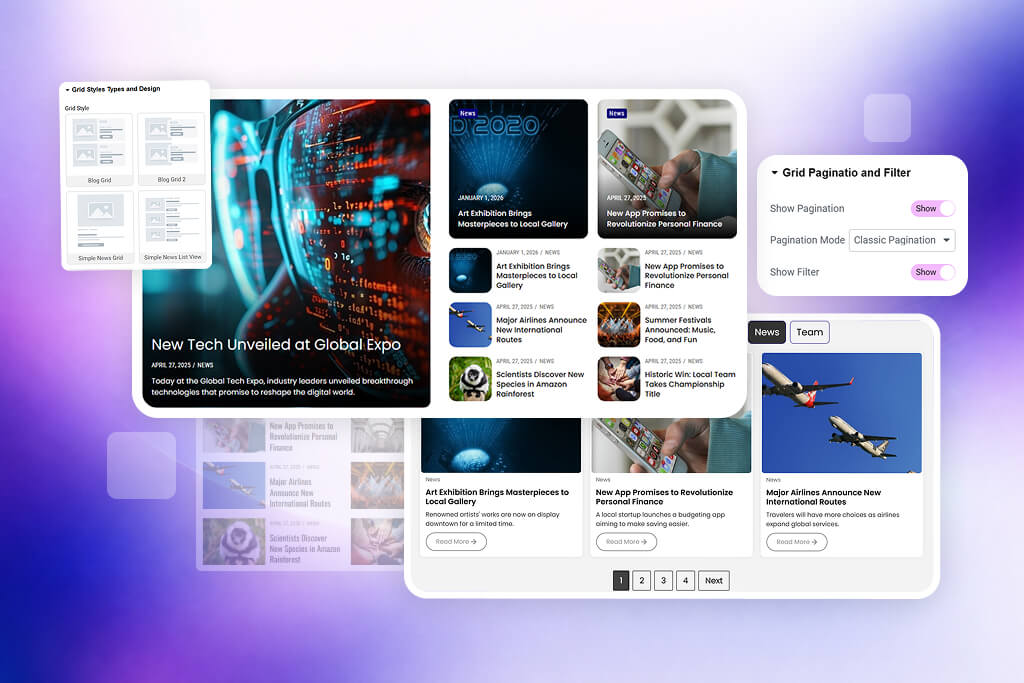
If you are searching for the best free Elementor post grid plugin, you are probably trying to create a better blog layout, post listing, portfolio section, news grid, or custom content showcase without writing code. Elementor gives you design freedom, but the default way of displaying posts can feel limited when you want a clean, responsive, and professional grid layout.
That is where Flexi Post Grid becomes useful. It is a free Elementor post grid plugin built to help WordPress users create attractive blog grids, responsive post layouts, custom post displays, and modern content sections directly inside Elementor. You can use it for blog posts, news articles, portfolio items, tutorials, business updates, and many other content types.
This guide explains why a post grid plugin is important, what makes Flexi Post Grid useful, how to create a post grid in Elementor, which free features are included, how it compares with default Elementor post layouts, and when you may want to upgrade to advanced features.
- Why You Need a Post Grid Plugin
- Why Flexi Post Grid Stands Out
- Free Features of Flexi Post Grid
- How to Create a Post Grid in Elementor
- Responsive Elementor Post Grid Layout
- Elementor Post Grid Customization
- Default Elementor vs Flexi Post Grid
- Who Should Use It
- Free vs Pro Overview
- Frequently Asked Questions
Why You Need a Post Grid Plugin for Elementor
A post grid plugin helps you display WordPress posts in a clean, organized, and visually attractive format. Instead of showing articles in a basic vertical list, you can create card-based layouts with thumbnails, titles, meta information, excerpts, buttons, overlays, and responsive columns.
This matters because visitors do not read every post one by one. Most users scan your page first. If your blog section looks cluttered, outdated, or hard to browse, they may leave quickly. A strong Elementor blog grid improves content discovery and helps visitors find the right article faster.
A good post grid layout can help you:
- Display more posts in less space without making the page look crowded
- Create a modern blog page, news section, or content showcase
- Improve mobile, tablet, and desktop browsing experience
- Highlight featured images, titles, dates, authors, categories, and tags
- Match your post design with your website branding
- Create better user engagement with clear card layouts and buttons
For Elementor users, a flexible post grid plugin is especially useful because it gives you design control without custom PHP or CSS work. You can build different layouts visually and adjust them based on your website style.
Why Flexi Post Grid Stands Out
Flexi Post Grid is designed for users who want a simple but flexible Elementor post grid solution. It provides ready-to-use layouts, responsive controls, image options, meta settings, button styling, overlay settings, and many customization controls that help you build better content sections inside Elementor.
The plugin is useful for bloggers, agencies, designers, business websites, portfolio websites, content creators, and WordPress users who want a better way to show posts. You can explore the plugin from the Flexi Post Grid plugin page, view live layouts on the preset grids demo page, and compare upgrade options on the pricing page.
SEO Tip: A post grid is not only a design element. A clean blog grid can improve navigation, help users discover more content, and support better internal linking across your WordPress website.
Free Features of Flexi Post Grid
The free version of Flexi Post Grid includes many practical features that help you create responsive Elementor post grids without starting from scratch. These features are useful for real websites, not only demo layouts.
10 ready-to-use preset layouts
The free plugin includes 10 preset layouts that help you create beautiful post grids quickly. These layouts can be used for blog grids, article sections, news layouts, and content showcases.
Grid button hover animations
Button hover animations make your post cards feel more interactive and polished. This small design detail can improve the overall look of your Elementor grid.
Advanced image controls
You can control image size, object-fit behavior, image height, and thumbnail display. This helps keep your grid cards consistent even when posts have different image dimensions.
Post meta support
The free version supports useful post meta such as categories, author, date, and tags. This gives readers more context before they click a post.
Comprehensive styling options
You can customize the design of your grid cards, including spacing, colors, typography, buttons, image areas, and other visual details directly inside Elementor.
Individual ordering control
You can control the order of thumbnail, meta, title, excerpt, and button elements. This helps you create different card structures for different website sections.
Post offset control
Post offset control is useful when you want to skip recent posts or create custom content sections without repeating the same posts across the page.
Responsive settings
You can adjust your grid for desktop, tablet, and mobile devices. This is important because blog grids must remain readable and attractive on every screen size.
Show or hide individual grid elements
You can show or hide title, meta, thumbnail, excerpt, button, and other card elements depending on the layout style you want to create.
Custom icon support for buttons
You can add custom icons to buttons, making call-to-action areas clearer and more attractive for users.
Fallback image option
If a post does not have a featured image, you can use a fallback image to keep your grid design clean and consistent.
Disable links when needed
You can disable links for title, image, or meta elements when you want a non-clickable grid card or a custom interaction style.
Overlay layer settings
Overlay settings help you create better image effects and improve readability when text or buttons are placed over image areas.
Custom CSS field
Advanced users can add extra CSS for custom refinements without editing theme files.
Loader color customization
You can change loader colors so loading states match your website branding and design system.
How to Create a Post Grid in Elementor
Creating a post grid in Elementor with Flexi Post Grid is simple. You do not need to write code or manually build each post card. The widget gives you controls to choose a layout, select content, customize design, and adjust responsive behavior.
Install Flexi Post Grid
Install and activate Flexi Post Grid on your WordPress website. After activation, the widget becomes available inside Elementor.
Open Elementor Editor
Edit any page with Elementor and search for the Flexi Post Grid widget in the Elementor panel.
Select a grid layout
Choose a preset layout that matches your blog, news, portfolio, or content section design.
Customize your grid
Adjust columns, spacing, image size, meta visibility, typography, colors, buttons, and responsive settings directly inside Elementor.
Publish your page
Preview the layout on desktop, tablet, and mobile, then publish the page when your Elementor post grid looks ready.
Responsive Elementor Post Grid Layout
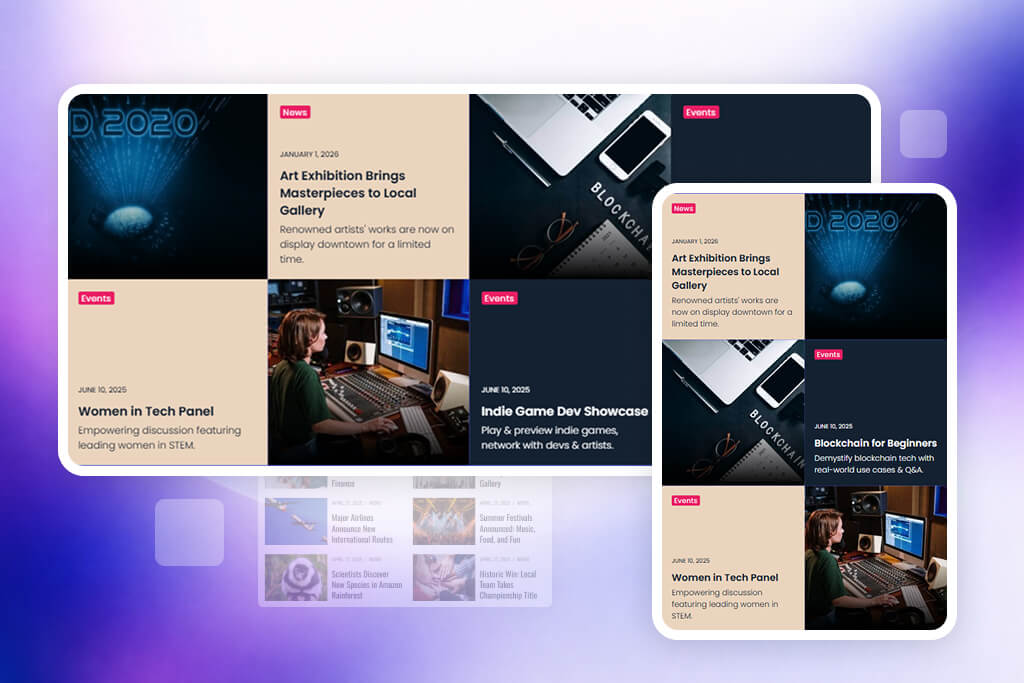
A responsive post grid is important because many visitors browse websites from mobile devices. A grid that looks good on desktop but breaks on mobile can hurt the user experience. Flexi Post Grid includes responsive controls so you can adjust the layout for desktop, tablet, and mobile screens.
You can use responsive settings to control how many columns appear on different devices, how image areas behave, and how content spacing looks on smaller screens. This helps you create a professional Elementor blog grid without needing separate layouts for each device.
Elementor Post Grid Customization

Customization is one of the main reasons users look for a free Elementor post grid plugin. A good plugin should not force every website to use the same card design. Flexi Post Grid lets you create different layouts by changing content order, image settings, meta visibility, overlay styles, button design, and spacing.
For example, a blog website may need a clean card with title, image, date, and excerpt. A news website may need stronger meta visibility. A portfolio website may prefer a visual-first layout with large thumbnails and minimal text. Flexi Post Grid gives you the flexibility to create these variations inside Elementor.
Why Flexi Post Grid is Better Than Default Elementor Post Layouts
Default post layouts are useful for basic needs, but they often feel limited when you want advanced design control. Flexi Post Grid gives you more layout freedom, better visual control, and more options for creating modern post grids.
| Feature | Default Elementor Post Layout | Flexi Post Grid |
|---|---|---|
| Preset grid layouts | Limited | 10 ready-to-use layouts in free version |
| Responsive controls | Basic | Desktop, tablet, and mobile controls |
| Image customization | Limited | Advanced image size and object-fit controls |
| Element visibility | Basic | Show or hide title, meta, thumbnail, button, and more |
| Card ordering | Limited | Control order of thumbnail, title, meta, excerpt, and button |
| Overlay settings | Limited | Overlay layer options included |
| AJAX pagination and filters | Not available by default | Available in advanced versions |
| WooCommerce product grid | Not built for advanced product grids | Available in Pro |
| Quick view popup | Not available by default | Available in Pro |
Who Should Use Flexi Post Grid?
Flexi Post Grid is useful for many types of WordPress websites. It is especially helpful if you want better design control for your content sections while keeping everything inside Elementor.
- Bloggers who want modern article grid layouts
- News and magazine websites that need structured post sections
- Business websites publishing updates, insights, or announcements
- Portfolio websites displaying projects or case studies
- Agencies building Elementor websites for clients
- Content creators who want clean and responsive blog sections
- WordPress users who want a free Elementor post grid plugin without coding
Free vs Pro Overview
The free version is a strong starting point for blog grids and content layouts. The Pro version is useful when you need more advanced features such as WooCommerce product grids, wishlist, AJAX-powered content popups, advanced event popups, quick view popups, sliders, and more interactive layouts.
| Area | Free Plugin | Pro Plugin |
|---|---|---|
| Layouts | 10 ready-to-use preset layouts | 16+ fully responsive preset layouts |
| Post grid design | Responsive blog and content grid layouts | Advanced layouts for blogs, news, portfolio, team, events, WooCommerce, and alternative grids |
| WooCommerce | Basic post-grid focused features | Advanced WooCommerce product grid with product-focused controls |
| Wishlist | Not included | Built-in wishlist system with shortcode support |
| Slider / Carousel | Not included | Grid slider and carousel mode with autoplay, arrows, dots, speed, and spacing controls |
| AJAX features | Design-focused grid features | AJAX filters, pagination, content popup, and advanced interactions |
| Events | Not included | Automatic event expiry and advanced event popup |
| Popup | Not included | AJAX-powered content popup, event popup, and WooCommerce quick view popup |
| Custom fields | Basic layout flexibility | Dynamic custom field support |
Tip: Start with the free version if you need a clean Elementor blog grid. Upgrade when you need AJAX filters, WooCommerce product grids, wishlist, sliders, advanced event layouts, or popup features.
Advanced Use Cases for Flexi Post Grid
Flexi Post Grid can be used in many different website sections. You can create a homepage blog section, latest news grid, featured articles area, portfolio showcase, tutorials list, resource section, or category-based content block. The Pro version expands these use cases with more advanced layouts and interactive features.
For WooCommerce websites, the Pro version can help create more attractive product grid sections. For event websites, it can help display events with expiry logic and event-specific popup content. For content-heavy websites, AJAX filters and pagination can make browsing easier for users.
You can also explore the Quick View Popup demo if you want to see how popup-based content previews can improve user experience.
Final Thoughts
If you are looking for the best free Elementor post grid plugin, Flexi Post Grid is a strong option for building responsive blog grids, article layouts, content showcases, and modern post sections inside Elementor. It gives you ready-to-use layouts, responsive settings, image controls, meta options, element visibility controls, overlay settings, fallback images, custom icons, and styling flexibility.
The free version is useful for many real websites, especially if your goal is to improve how posts appear on your Elementor pages. When you need more advanced features like WooCommerce product grids, AJAX pagination, sliders, wishlist, event popups, or quick view popups, the Pro version gives you more power.
Explore Flexi Post Grid
Ready to create better Elementor post grids? Explore the plugin, view live demos, compare features, and start building responsive blog layouts.
Related Topics: Elementor blog grids, AJAX post grids, WooCommerce product grids, responsive post layouts, Elementor content showcase widgets, WordPress grid plugins, Elementor custom post layouts, post grid plugin for WordPress.
Frequently Asked Questions
1. What is the best free post grid plugin for Elementor?
Flexi Post Grid is a strong option for Elementor users who want ready-to-use layouts, responsive controls, image customization, meta support, styling options, and flexible content display features in the free version.
2. Can I create multiple post grid styles with the free version?
Yes. Flexi Post Grid includes 10 ready-to-use preset layouts, and you can create multiple grid variations by changing layout settings, styling, image controls, and element visibility.
3. Does Flexi Post Grid work with Elementor responsive settings?
Yes. The plugin includes responsive controls for desktop, tablet, and mobile, helping you create clean post grids across all devices.
4. Can I create a blog grid layout in Elementor?
Yes. You can use Flexi Post Grid to create blog grid layouts directly inside Elementor without writing custom code.
5. Can I show or hide specific elements in each grid card?
Yes. You can show or hide card elements such as title, meta, thumbnail, excerpt, button, and more depending on your design needs.
6. Does the free version support post meta?
Yes. Flexi Post Grid supports categories, author, date, and tags in the free version, making it easier to display useful post information inside grid cards.
7. Can I use fallback images for posts without thumbnails?
Yes. The plugin includes a fallback image option so your grid layout remains visually consistent even when some posts do not have featured images.
8. Can I customize grid buttons in the free plugin?
Yes. The free version supports button hover animations and custom icon support for buttons.
9. Can I create AJAX post grids in Elementor?
Advanced AJAX features such as AJAX filters, pagination, and content popups are available in the Pro version of Flexi Post Grid.
10. Which Elementor plugin supports WooCommerce product grids?
Flexi Post Grid Pro supports advanced WooCommerce product grid layouts and product-focused display options.
11. Is Flexi Post Grid only for blog websites?
No. It can be used for blogs, news sections, portfolio displays, tutorials, business updates, content showcases, and many Elementor-based post layouts.
12. Where can I see Flexi Post Grid demos?
You can view live examples on the preset grids demo page.