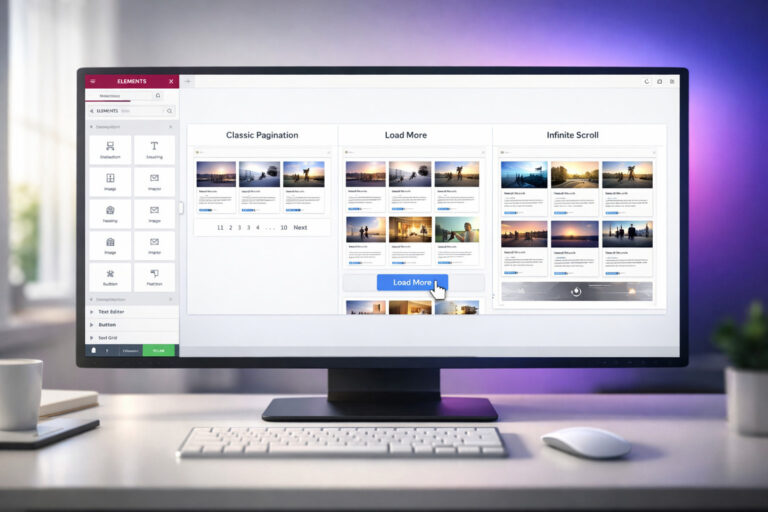
Best Post Grid Plugin for Elementor Free
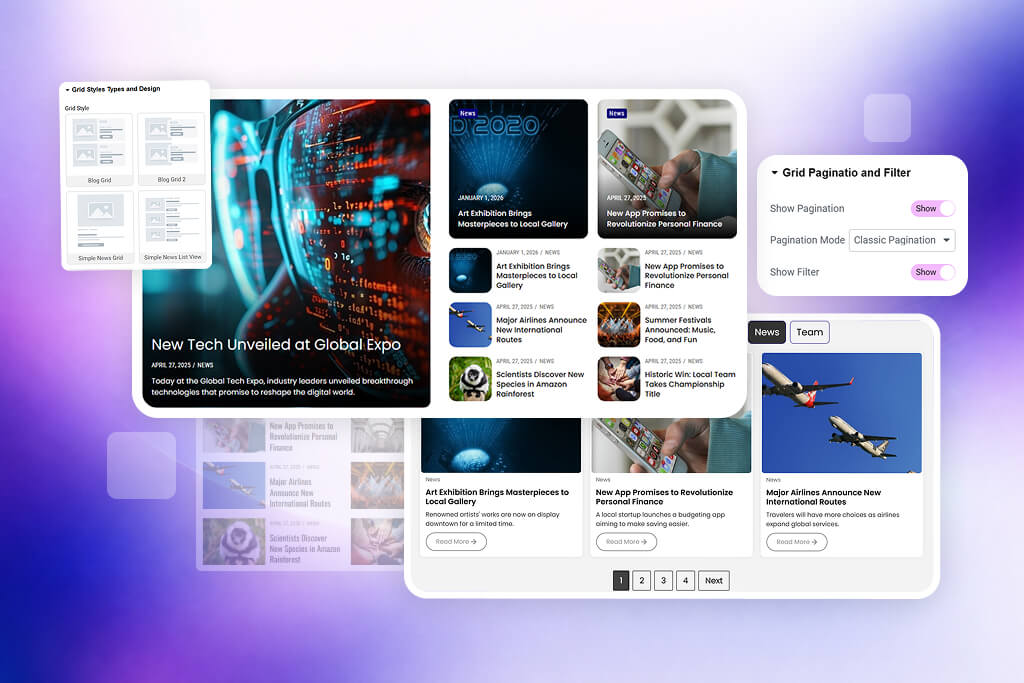
If you use Elementor to build WordPress websites, you already know how important layout design is. A well-designed post grid helps visitors explore your content faster, keeps your site looking professional, and makes blog posts, news articles, portfolios, and other content much easier to browse.
Many website owners start with the default WordPress post layout, but it often feels too basic for modern websites. That is why many Elementor users search for the best post grid plugin for Elementor free—something flexible, visual, easy to use, and powerful enough to create beautiful grid sections without coding.
Flexi Post Grid is built for exactly that purpose. It helps you create stylish post grid layouts directly inside Elementor using ready-to-use preset layouts, responsive controls, image settings, meta options, button customization, and much more. Whether you run a personal blog, a business website, a news site, or a content-rich project, Flexi Post Grid gives you the tools to present your content in a cleaner and more engaging way.
Why You Need a Post Grid Plugin for Elementor
Elementor gives you design freedom, but the way posts are displayed still matters a lot. A post grid plugin helps you turn plain post listings into structured and attractive layouts. Instead of showing content in a simple vertical list, you can create clean grids that instantly improve readability and visual balance.
This matters because visitors usually scan content before they decide what to read. If your blog page, news archive, or article section looks cluttered or outdated, users may leave quickly. A better grid layout makes your site easier to explore and helps highlight your most important content.
A strong post grid can help you:
- Show more posts in less space without making the page feel crowded
- Improve content discovery with better visual organization
- Match your blog layout to your brand style
- Create better mobile, tablet, and desktop experiences
- Present blog posts, portfolios, and custom content in a more professional way
That is why choosing the right free Elementor grid plugin can make a real difference, especially if you want professional results without paying at the beginning.
Why Flexi Post Grid Stands Out
Flexi Post Grid is designed for Elementor users who want flexibility and control without unnecessary complexity. It is built to help you create unlimited variations from a strong free foundation. Instead of forcing you into one style, it gives you multiple layout options and detailed controls so you can create grids that match your content and website design.
The plugin works well for blogs, news sections, content showcases, and many custom post display needs. You can learn more from the Flexi Post Grid plugin home page and explore the full feature overview.
Free Features of Flexi Post Grid
One of the biggest strengths of Flexi Post Grid is that the free version already includes practical features that help you build attractive and useful content grids inside Elementor. Below are the main free features you can use.
10 ready-to-use preset layouts
The free plugin includes 10 preset layouts that help you start quickly. These presets give you a strong structure for blog grids and content displays, and you can create unlimited grid variations from these foundations by customizing the layout, spacing, styling, and element visibility.
Grid button hover animations
Buttons are small elements, but they affect the overall polish of your design. Flexi Post Grid includes button hover animations that make your grid cards feel more interactive and modern.
Advanced image controls
You can set predefined or custom image sizes, control object-fit behavior, and adjust wrapper height. This helps maintain clean alignment across grid cards and prevents layout issues caused by inconsistent thumbnail dimensions.
Post meta support
The free version supports important post meta information including Categories, Author, Date, and Tags. This allows you to add useful context to each card and improve the browsing experience for readers.
Comprehensive styling options
You can style every major section of the grid, making it easier to match the layout with your existing site design. This is useful for users who want a more branded and polished presentation.
Individual ordering control
You can control the order of thumbnail, meta, title, excerpt, and button elements. This gives you more layout flexibility and helps you create card structures that fit different content types.
Post offset control
Post offset control is useful when you want a custom query flow. It helps you skip a number of posts at the beginning so you can build more intentional content sections on your pages.
Easy responsive settings
The plugin includes responsive settings for Desktop, Tablet, and Mobile. This is essential for modern websites because content grids must remain attractive and usable across all screen sizes.
Show or hide individual grid elements
You can show or hide elements like title, meta, thumbnail, and more. This makes it easy to create both minimal and information-rich card layouts depending on your content style.
Custom icon support for buttons
You can add custom icons to grid buttons, helping improve button clarity and visual appeal. This is especially useful when creating call-to-action focused layouts.
Default or fallback image option
If a post does not have a featured image, the plugin can show a fallback image instead. This keeps the grid layout visually consistent and prevents empty thumbnail areas.
Disable links when needed
You can disable links for the title, image, or meta as needed. This gives you more control over user behavior and allows you to create layouts that fit different use cases.
Overlay layer settings
Overlay layers help you create more visual depth on thumbnails and improve readability when text or buttons appear over images.
Custom CSS field
Advanced users can use the custom CSS field to apply extra design refinements without editing theme files. This is especially useful for developers and designers who want more control.
User can change loader colors
The plugin allows users to change loader colors so that the loading state also matches the site branding and overall visual design.
Why These Free Features Matter
A free plugin becomes truly useful when it gives you practical control—not just a basic demo experience. Flexi Post Grid’s free version is valuable because it covers the design details that actually matter when building a real site: responsive layout control, image handling, content visibility, styling flexibility, and card structure customization.
That means you can use the free version for actual production websites, not just for testing. It is suitable for bloggers who want a better archive page, agencies building Elementor websites for clients, content creators who need modern blog sections, and businesses that want a more organized way to display articles or updates.
Responsive Elementor Post Grid Layout
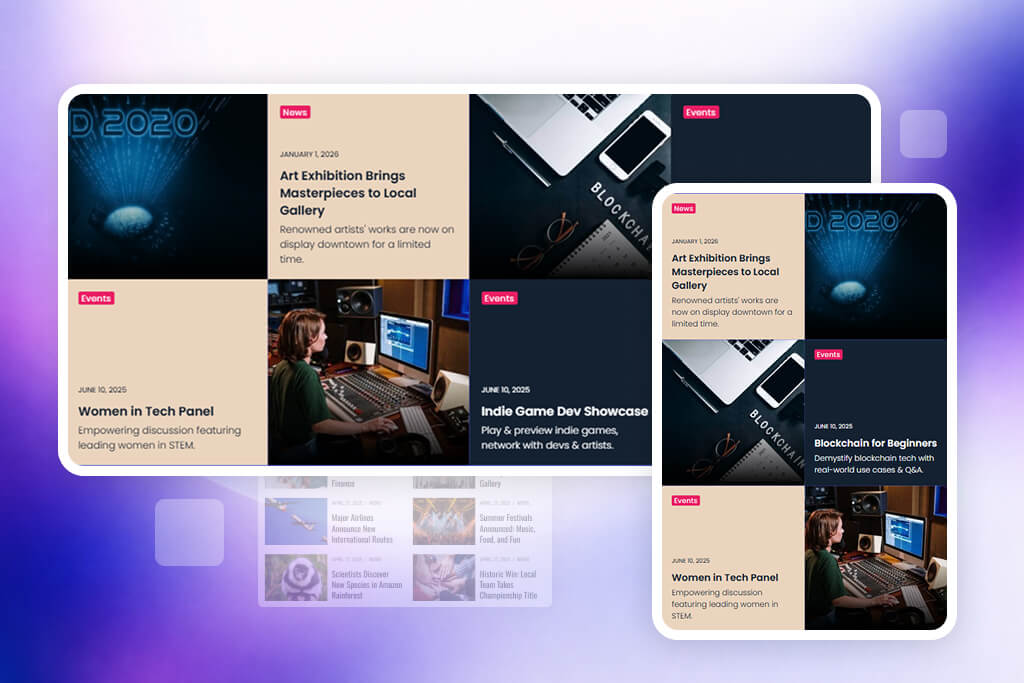
A responsive grid layout is no longer optional. A large part of website traffic comes from mobile devices, and your content needs to remain easy to browse on every screen size. Flexi Post Grid helps you adjust your layout for desktop, tablet, and mobile so the reading experience stays clean and consistent.
Elementor Post Grid Customization

Customization is where a strong Elementor grid plugin becomes truly useful. Small options like changing element order, choosing whether to show meta fields, controlling image behavior, and adding custom icons can dramatically improve the overall look of your content blocks.
Who Should Use Flexi Post Grid?
Flexi Post Grid is useful for many types of WordPress websites. It is especially helpful if you want more design freedom for your post listings while keeping the workflow simple inside Elementor.
- Bloggers who want modern article grids
- News and magazine sites that need structured content sections
- Portfolio websites displaying projects or case studies
- Business sites publishing updates, insights, or announcements
- Agencies and freelancers building Elementor sites for clients
How to Get Started
Explore the plugin
Start by visiting the Flexi Post Grid plugin page to understand what the plugin offers.
Review preset layout examples
Check the preset grid demos to see how different grid styles can look on a live website.
Read the documentation
The Flexi Post Grid documentation can help you understand widget options and setup details more clearly.
Compare free and Pro options
If you want advanced features later, you can compare options on the pricing page.
Free vs Pro Overview
| Area | Free Plugin | Pro Plugin |
|---|---|---|
| Layouts | 10 ready-to-use preset layouts | 16+ fully responsive preset layouts |
| Buttons | Hover animations and custom icon support | More advanced use cases with product-focused controls |
| Images | Advanced image controls and overlay settings | Advanced hover animations and gradient layers |
| Responsive | Easy responsive settings for Desktop, Tablet, and Mobile | Per-device column and ordering control |
| Dynamic / Advanced | Strong design customization foundation | AJAX pagination, filters, sliders, wishlist, events, WooCommerce, custom fields |
Tip: The free version is a solid starting point for most blog and content grid needs. When you need advanced front-end interactivity, product grids, event features, or AJAX-based experiences, the Pro version becomes the natural next step.
Final Thoughts
If you are searching for the best post grid plugin for Elementor free, Flexi Post Grid deserves serious consideration. It gives you a practical set of free features that are actually useful for real website projects, not just basic demos. You get preset layouts, responsive controls, image settings, meta support, element visibility options, overlay layers, custom icons, fallback images, and styling flexibility—all inside Elementor.
That combination makes it a smart choice for anyone who wants to improve how posts are displayed without making the design process complicated. It is easy enough for beginners, useful enough for designers, and flexible enough for developers who want more control.
Explore Flexi Post Grid
Ready to build better Elementor grids? Explore the plugin, review the features, and see preset layouts in action.
Frequently Asked Questions
1. What is the best free post grid plugin for Elementor?
Flexi Post Grid is a strong option for Elementor users who want ready-to-use layouts, responsive controls, image customization, meta support, styling options, and flexible content display features in the free version.
2. Can I create multiple post grid styles with the free version?
Yes. Flexi Post Grid includes 10 ready-to-use preset layouts, and you can create unlimited grid variations from those foundations by changing layout settings, styling, and element visibility.
3. Does Flexi Post Grid work with Elementor responsive settings?
Yes. The plugin includes easy responsive settings for Desktop, Tablet, and Mobile, helping you build grids that look clean across all devices.
4. Can I show or hide specific elements in each grid card?
Yes. You can show or hide individual grid elements like the title, meta, thumbnail, and other card sections depending on the layout style you want.
5. Does the free version support post meta?
Yes. Flexi Post Grid supports Categories, Author, Date, and Tags in the free version, making it easier to display useful post information inside grid cards.
6. Can I use fallback images for posts without thumbnails?
Yes. The plugin includes a default or fallback image option so your grid design remains visually consistent even when some posts do not have featured images.
7. Can I customize grid buttons in the free plugin?
Yes. The free version supports grid button hover animations and custom icon support for buttons, helping you create better visual call-to-actions.
8. Is Flexi Post Grid good for blog websites only?
No. It is especially useful for blogs, but it can also help with news sections, content showcases, portfolio-style displays, and other Elementor-based content layouts.
9. Where can I see Flexi Post Grid demos?
You can review layout examples on the preset grids demo page to get a better idea of how the plugin can be used.
10. Where can I read Flexi Post Grid documentation?
You can read setup details and usage guidance on the official documentation page.