Elementor Post Grid Widget: Complete Beginner Guide to Build Advanced Blog Layouts
A modern WordPress website is no longer just about publishing content — it’s about how users browse that content. If your blog still shows a long vertical list of posts, you are losing engagement, page views, and conversions.
That’s where an Elementor Post Grid Widget becomes essential.
Instead of displaying plain posts, you can present your content in structured, responsive, and visually balanced grid cards with advanced controls for layout, spacing, filtering, and pagination.
Quick links (allowed URLs only):
In this guide
- What is an Elementor Post Grid Widget?
- Why grid layouts improve UX and SEO
- Default Elementor vs advanced grid plugin
- How to build an Elementor post grid (step-by-step)
- AJAX category filters: faster content browsing
- Pagination options for different website types
- Responsive design tips
- Performance optimization tips
- Final thoughts
- FAQ
In this complete beginner guide, you’ll learn:
- What an Elementor post grid is
- Why grid layouts improve UX and SEO
- How to build your first grid step-by-step
- How AJAX filtering changes browsing behavior
- How to keep your grid fast and mobile-friendly
We’ll also show how you can build everything visually using Flexi Post Grid.
What is an Elementor Post Grid Widget?
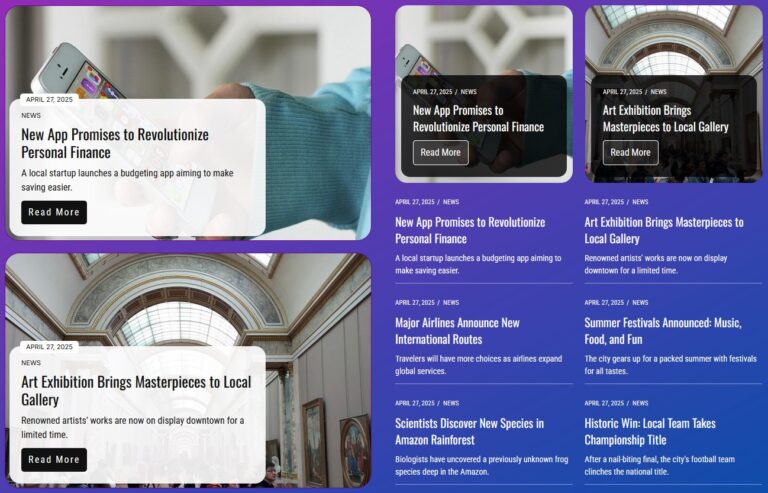
An Elementor post grid widget allows you to display posts in a card-based layout instead of a simple list.
Each card can include:
- Featured image
- Title
- Meta (date, author, category)
- Excerpt
- Read more button
This layout is widely used for:
- Blog homepages
- News websites
- Magazine layouts
- Portfolio grids
- WooCommerce product grids
With Flexi Post Grid, you can build these layouts without writing a single line of code.
Why Grid Layouts Improve User Experience
Your grid is your content navigation system.
A well-structured grid:
- Shows more posts above the fold
- Makes scanning easier
- Encourages deeper browsing
- Increases time on site
This directly improves:
- Engagement
- Page views
- Internal linking
- SEO performance
Tip: If visitors can find content faster, they stay longer — and that’s a strong signal for both UX and SEO.
Default Elementor vs Advanced Grid Plugin
Elementor’s default post widget is good for basic layouts — but it has limitations. If you want more control (preset layouts, AJAX browsing, and deeper styling), a dedicated post grid plugin is a better option.
With Flexi Post Grid, you unlock:
Free Version Highlights
- 10 ready-to-use preset layouts – create unlimited grid variations from these foundations
- Advanced image controls – predefined or custom sizes, object-fit & wrapper height
- Post meta support – Categories, Author, Date & Tags
- Show / hide individual grid elements (title, meta, thumbnail, etc.)
- Easy responsive settings for Desktop, Tablet & Mobile
- Custom icon support for buttons
Pro Version Highlights
- 16+ fully responsive preset layouts – including Blog, News, Portfolio, Team, Events, WooCommerce Products & Alternative Grid styles
- AJAX pagination modes – Classic Pagination, Load More & Infinite Scroll
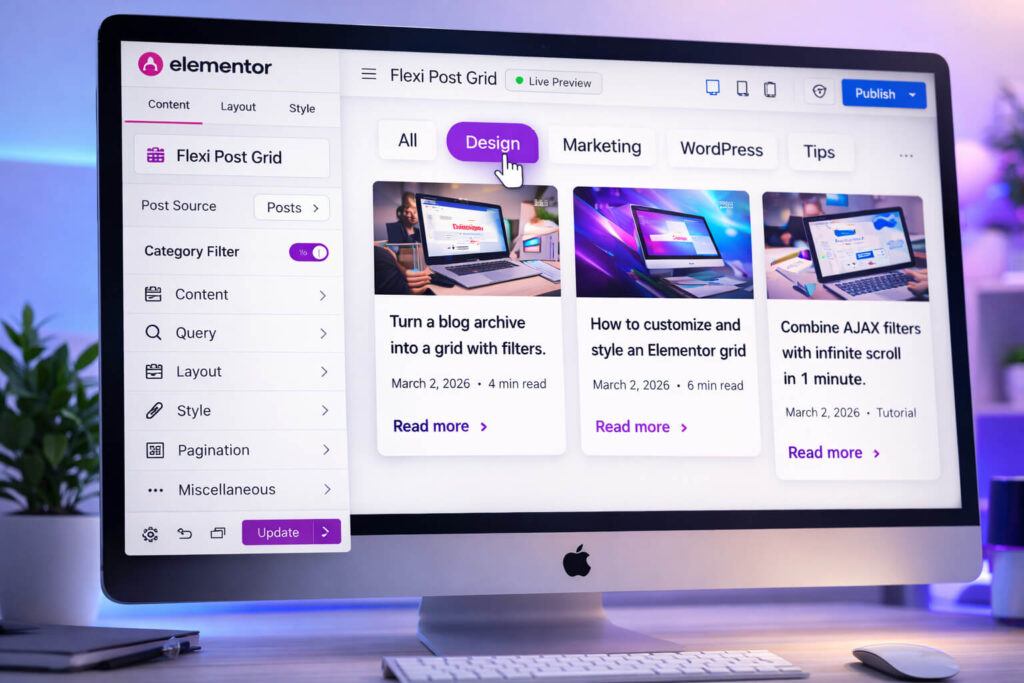
- Optional AJAX category filters for instant front-end filtering
- Advanced WooCommerce Product Grid with price, rating, variation swatches & secondary hover image
- Built-in wishlist system with a dedicated wishlist page and shortcode support: [fpg_wishlist]
- Grid Slider / Carousel mode (enable directly from grid settings)
- Dynamic custom field support – fetch and display fields created by any plugin
This gives you full design and content control inside Elementor.
How to Build an Elementor Post Grid (Step-by-Step)
Step 1 — Add the widget
Open your page with Elementor and drag the Flexi Post Grid widget into your section.
Step 2 — Select your content source
You can display posts, pages, custom post types, or WooCommerce products.
You can also include specific categories or exclude specific posts for precise control.
Step 3 — Choose a preset layout
Start with a ready-made layout from the demo library: Flexi Post Grid preset grids demo.
Then customize columns, spacing, typography, and image ratio.
Step 4 — Style your grid
You have full control over meta position, button styles, hover animations, and overlay layers.
AJAX Category Filters: Faster Content Browsing
Category filters allow visitors to switch between topics instantly.
Instead of reloading the page, AJAX filtering:
- Updates the grid instantly
- Feels like a web app
- Improves mobile experience
Flexi Post Grid Pro includes optional AJAX category filters for dynamic browsing.
Where it helps most: if you have multiple content categories (tutorials, updates, news, products), AJAX filters make browsing faster and more enjoyable.
Pagination Options for Different Website Types
You can choose a pagination mode based on how visitors browse your content:
Classic Pagination
Best for:
- Blogs
- Tutorials
- SEO-focused archives
Load More (AJAX)
Best for:
- Modern blogs
- Portfolio grids
- Resource libraries
Infinite Scroll
Best for:
- News feeds
- Discovery-based browsing
Important: Infinite scroll can make it harder to reach the footer. If your footer contains important links (pricing, documentation, contact), consider using Load More instead.
Responsive Design Tips
For best results:
- Desktop → 3–4 columns
- Tablet → 2 columns
- Mobile → 1 column
Keep spacing comfortable for touch devices and make sure titles remain readable on small screens.
Performance Optimization Tips
To keep your grid fast:
- Load 6–12 posts per request
- Use optimized image sizes
- Avoid excessive animations
- Keep layout clean
For full setup guidance: Flexi Post Grid documentation.
Final Thoughts
An Elementor post grid is not just a design feature — it’s a content experience upgrade.
With the right layout and browsing controls, you can turn your blog into a modern content hub that:
- Looks professional
- Loads fast
- Keeps users engaged
Start with the free version and upgrade when you need advanced features.
Build your first Flexi Post Grid layout
Start with ready-made presets and customize visually in Elementor. Upgrade to Pro when you need AJAX pagination modes and optional AJAX category filters.
FAQ
Does Elementor have a post grid widget?
Yes, Elementor can display posts, but advanced layouts, AJAX filters, and modern pagination modes usually require a dedicated grid plugin.
Can I show custom post types in a grid?
Yes. Flexi Post Grid supports custom post types, letting you display different content types in the same grid system.
Is an Elementor post grid good for SEO?
A well-structured grid can improve internal linking and engagement. For best results, keep your grid fast and mobile-friendly.
Where can I see real grid layout examples?
You can explore working examples here: Flexi Post Grid preset grids demo.
Where can I find setup instructions and configuration help?
Use the official documentation here: Flexi Post Grid documentation.