Quick View Popup for WooCommerce, Posts & Events in WordPress
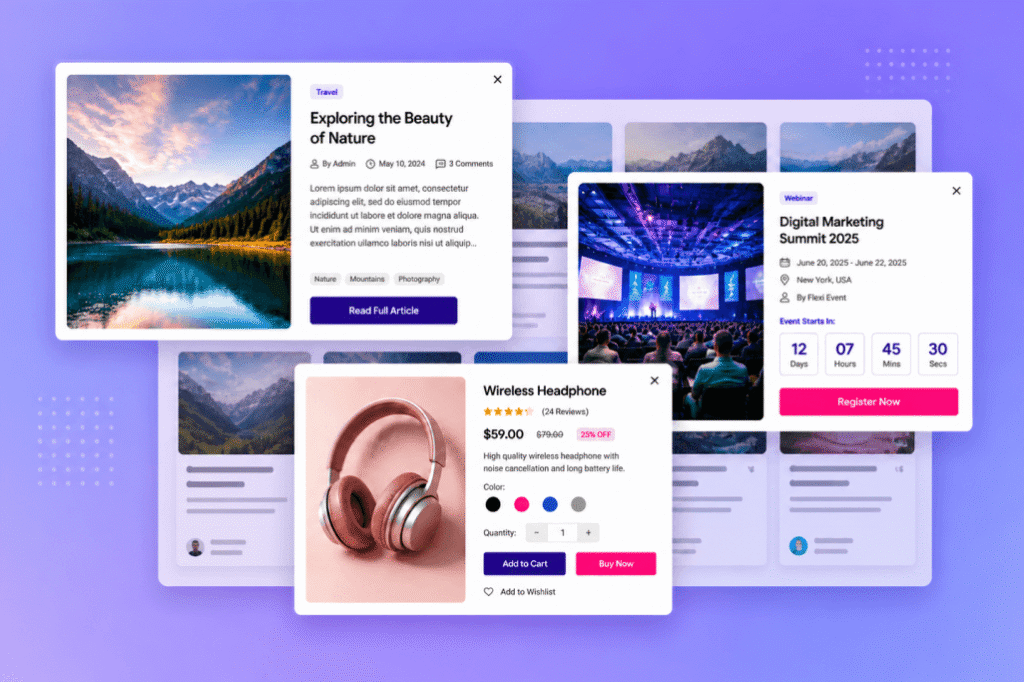
A quick view popup is one of the most useful features for modern WordPress websites because it helps users view more information without leaving the current page. Instead of forcing visitors to open a new post, product, or event page every time they want more details, a popup can display important content instantly in the same browsing flow.
This is especially useful for websites that use grids, card layouts, product listings, event directories, portfolios, blogs, or custom post type archives. When users can explore more content without repeated page reloads, the website feels faster, cleaner, and easier to use.
For WordPress site owners, this can improve engagement, reduce unnecessary navigation, and create a smoother browsing experience. For WooCommerce stores, a quick view popup can also help customers check product details, choose variations, add products to cart, or move toward checkout faster.
In this guide, we will explain what a quick view popup is, why it matters, how it works for posts, events, and WooCommerce products, and how Flexi Post Grid helps you create a complete popup experience inside Elementor-powered WordPress websites.
See Quick View Popup in Action
Explore live examples of post popup, event popup and WooCommerce product quick view popup built with Flexi Post Grid.
What is a Quick View Popup?
A quick view popup is a popup window that opens above the current page and displays additional details about a selected item. The item can be a blog post, portfolio item, event, product, team member, news article, or any custom post type.
The main goal is simple: show useful information without redirecting the visitor to another page. This creates a faster and more focused experience because users can keep exploring the same grid while checking details inside a popup.
In many WordPress websites, users see content in grid format. For example, a blog page may show recent posts, a portfolio page may show projects, an event page may show upcoming events, and a WooCommerce page may show products. Without a popup, users must open each item individually, then go back to the listing page. This repeated back-and-forth navigation can feel slow and frustrating.
A quick view popup solves this by loading the details directly inside the current page. A good popup can include title, featured image, content, excerpt, categories, meta data, custom fields, product price, event date, action buttons, and more depending on the type of content.
Simple meaning: A quick view popup lets visitors view more details without opening a separate page.
Why Use a Quick View Popup in WordPress?
Modern website users expect speed and convenience. If a visitor needs to open five different pages just to compare information, they may leave before taking action. A quick view popup helps keep the browsing experience smooth.
1. Better User Experience
A popup keeps users on the same page while giving them access to deeper information. This is helpful for content-heavy websites where visitors may want to explore multiple items quickly.
2. Less Page Reloading
When popup content loads dynamically, users do not need to wait for a complete page refresh. This makes the website feel more responsive and professional.
3. Higher Engagement
If users can open several posts, events, or products quickly, they are more likely to stay longer. A smooth popup experience can increase content discovery and reduce friction.
4. Better WooCommerce Shopping Flow
For online stores, a product quick view popup can help customers check product details, view prices, select variations, adjust quantity, and add items to cart without leaving the product grid.
5. Useful for Mobile Users
Mobile users often prefer fewer page changes. A responsive popup can make browsing easier by showing key details in a compact, scroll-friendly layout.
Simple Post Popup for Posts and Custom Post Types
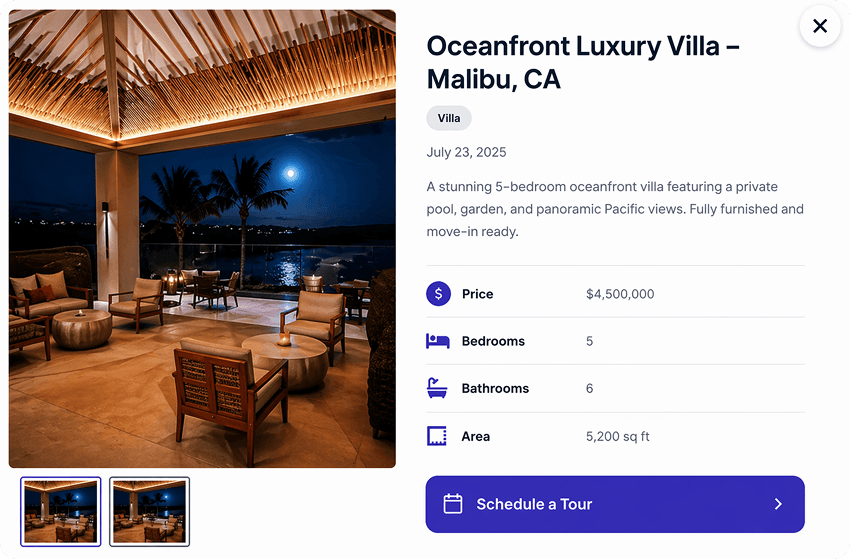
The Simple Post Popup in Flexi Post Grid is designed for blog posts, pages, portfolios, news items, case studies, and custom post types. It helps visitors view detailed content without leaving the current grid page.
This popup is useful when your website has many content cards and users need a quick way to explore each item. For example, a blog listing can show post cards, and when a visitor clicks an item, the popup can display the post title, featured image, excerpt, full content, categories, and meta information.
Because the popup uses AJAX-powered loading, content can appear dynamically without a full page refresh. This improves the browsing experience and makes the site feel more modern.
What You Can Display in a Simple Post Popup
- Post title
- Featured image
- Excerpt or full content
- Categories below the title
- Author, date, categories, tags, and comments
- Custom fields from ACF or other meta fields
- Shortcodes inside the popup content
- Custom action button
The custom action button is especially helpful when you want to guide users to a specific action. You can use it for labels like “More Info”, “Read Full Article”, or a custom link to an external landing page, support page, ticket page, or any third-party URL used in your workflow.
For design control, the Simple Post Popup gives you flexibility over popup width, spacing, background colors, typography, border radius, shadow, overlay, close icon styling, loader color, and smooth fade-in behavior. This helps you match the popup design with your WordPress theme and brand style.
Another important usability detail is scrolling behavior. On desktop, the popup can keep the image area visually stable while the content section scrolls. On mobile, the entire popup can scroll naturally so users can read content comfortably on smaller screens.
Try Simple Post Popup
Preview how posts, pages and custom post types can open inside a smooth AJAX-powered quick view popup.
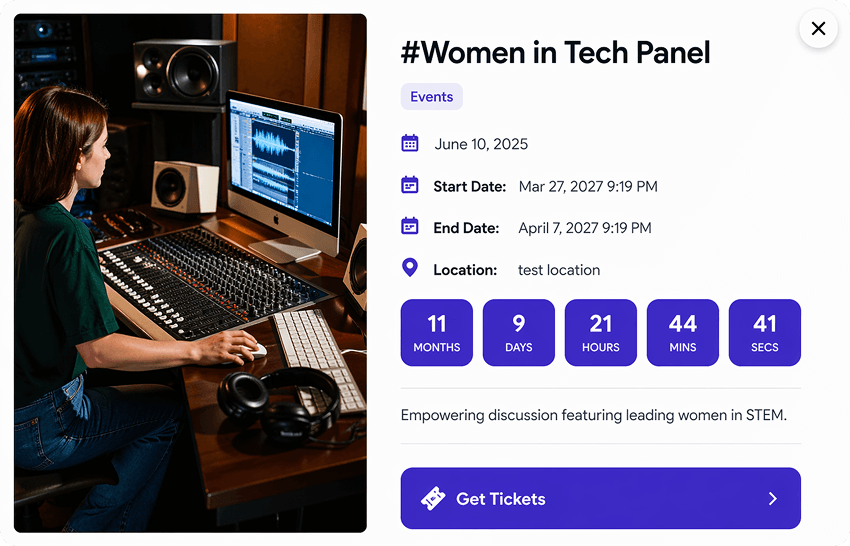
Event Popup for Webinars, Workshops and Listings
An Event Popup is designed for event-based websites where users need quick access to structured event details. It extends the normal post popup by adding event-specific information such as start date, end date, expiry date, and event location.
This is useful for websites that publish webinars, workshops, seminars, meetups, conferences, online classes, local events, or time-sensitive announcements. Instead of sending users to a separate event page for every listing, you can show important event details directly inside a popup.
Why Event Popup is Important
Events are different from normal blog posts because timing matters. Users need to know when the event starts, when it ends, where it happens, and whether it is still available. A well-designed event popup can make that information easier to understand.
The Event Popup also supports smart event handling logic. You can automatically hide expired events and show only relevant upcoming events. This keeps your event grid clean and avoids confusing users with outdated listings.
Useful Event Popup Elements
- Event start date
- Event end date
- Event expiry date
- Event location
- Flexible event date formatting
- Countdown timer
- Custom action button
The custom action button can be used for event-specific actions like “Book Now”, “Register”, “View Full Event Details”, or “Get Ticket”. This button can link to external ticket platforms, registration forms, dedicated event pages, or other third-party event tools.
A countdown timer can also increase urgency. For example, if a webinar starts soon, visitors can quickly see how much time is left. Depending on your setup, the countdown can show days, hours, minutes, and seconds.
This type of popup is very useful for website owners who want to create a professional event browsing experience without building a separate event system from scratch.
Preview Event Quick View Popup
See how event date, location, countdown and action button can appear inside a clean event popup.
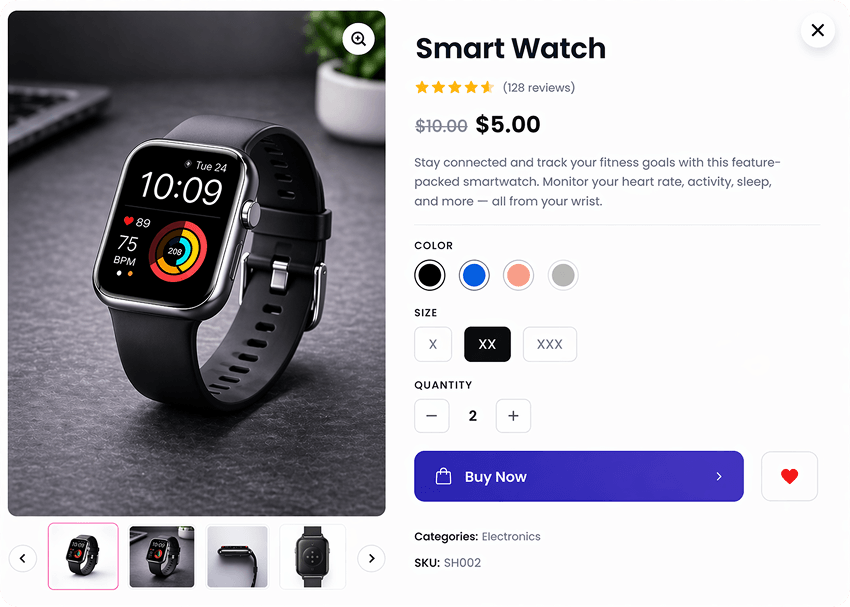
WooCommerce Product Quick View Popup
A WooCommerce Product Quick View Popup helps customers explore products directly from the product grid. Instead of opening a separate product page, customers can view product details, check price, choose variations, adjust quantity, and move toward purchase from the popup.
This is important because every extra step in the shopping journey can reduce conversions. If customers need to open product pages one by one, compare details, return to the shop page, and repeat the process, the experience can feel slow. A product popup makes product browsing faster.
What Product Popup Can Display
- Product title
- Product image or gallery
- Short or full product description
- Regular price and sale price
- Product rating
- Categories
- SKU
- Stock status
- Variation options like color and size
- Quantity selector
- Add to cart button
- Buy Now option
- Wishlist button
The Product Popup is especially powerful for variable products. When a user selects an option such as color or size, the popup can update the selected state, product image, and price dynamically. This creates a smooth shopping experience similar to modern eCommerce platforms.
Wishlist support is also helpful because many customers do not purchase immediately. They may want to save products and return later. With a built-in wishlist system and shortcode support, Flexi Post Grid Pro can help users create a more complete shopping experience.
For design, popup elements such as price, variation buttons, quantity field, wishlist icon, product buttons, and layout can be customized to better match your store design. The product popup is also optimized for desktop and mobile browsing.
View WooCommerce Product Quick View Popup
Preview product popup with price, variations, wishlist, quantity, add to cart and Buy Now actions.
Flexi Post Grid Features for Better Popup Experience
Flexi Post Grid is built for WordPress and Elementor users who want to display content in flexible grid layouts. It can be used for blogs, news, portfolios, teams, events, WooCommerce products, and alternative grid styles.
The popup system becomes more powerful when combined with grid controls, responsive options, AJAX filtering, image controls, and layout customization.
Free Plugin Features
- 10 ready-to-use preset layouts – create unlimited grid variations from these foundations
- Grid button hover animations
- Advanced image controls – predefined or custom sizes, object-fit & wrapper height
- Post meta support – Categories, Author, Date & Tags
- Comprehensive styling options for every grid section
- Individual ordering control for thumbnail, meta, title, excerpt & button
- Post offset control for custom query flow
- Easy responsive settings for Desktop, Tablet & Mobile
- Show / hide individual grid elements (title, meta, thumbnail, etc.)
- Custom icon support for buttons
- Default/fallback image option for thumbnails
- Disable links for title, image or meta as needed
- Overlay layer settings
- Custom CSS field for advanced user styling
- User can change loader colors
Pro Plugin Features
- 16+ fully responsive preset layouts – including Blog, News, Portfolio, Team, Events, WooCommerce Products & Alternative Grid styles
- Advanced WooCommerce Product Grid with price, rating, variation swatches & secondary hover image
- Built-in wishlist system with a dedicated wishlist page and shortcode support: [fpg_wishlist]
- Custom product button labels for tailored call-to-actions
- Grid Slider / Carousel mode (enable directly from grid settings)
- Complete slider controls – slides per view, autoplay, navigation arrows, dots, speed & spacing
- Arrow styling options – color, background, size, border radius & hover effects
- AJAX pagination modes – Classic Pagination, Load More & Infinite Scroll
- Include / Exclude posts by content fields for precise query control
- Automatic event expiry based on event date
- Dynamic custom field support – fetch and display fields created by any plugin
- Per-device column & ordering control (Desktop / Tablet / Mobile)
- Image overlays, gradient layers & advanced hover animations
- Optional AJAX category filters for instant front-end filtering
Build Better WordPress Grids with Quick View Popups
Use Flexi Post Grid to create responsive post grids, event grids and WooCommerce product grids with modern popup experiences.
Best Practices for Quick View Popups
A quick view popup should make the user experience easier, not heavier. The best popup designs are clean, focused, and action-oriented.
Keep Important Information First
Users should quickly understand what they are viewing. Keep the title, image, price, date, or main information near the top of the popup.
Use Clear Action Buttons
Every popup should guide users toward the next step. For posts, that may be “Read Full Article”. For events, it may be “Register”. For products, it may be “Add to Cart” or “Buy Now”.
Make It Mobile Friendly
A popup must work well on mobile devices. Content should be readable, buttons should be easy to tap, and scrolling should feel natural.
Do Not Overload the Popup
A popup is not always the place for every detail. Show what matters most, then use a button if users need to visit a full page or external destination.
Use AJAX for a Smoother Experience
AJAX loading helps reduce full page reloads. This makes the popup feel faster and keeps users focused on the same page.
Who Should Use Quick View Popups?
Quick view popups are useful for many types of WordPress websites:
| Website Type | Best Popup Type | Why It Helps |
|---|---|---|
| Blog or news website | Simple Post Popup | Users can read details without leaving the listing page. |
| Portfolio website | Simple Post Popup | Visitors can view project details quickly. |
| Event website | Event Popup | Users can see dates, location and registration options. |
| WooCommerce store | Product Popup | Customers can view products and purchase faster. |
| Directory website | Simple Post Popup or Custom Post Type Popup | Users can browse many listings without repeated navigation. |
Compare All Quick View Popup Types
See post popup, event popup and WooCommerce product popup examples together on the live quick view popup page.
Final Thoughts
A quick view popup is more than a design feature. It is a user experience improvement that can help visitors browse faster, understand content more clearly, and take action with fewer steps.
For blog websites, a Simple Post Popup helps users explore posts and custom post types without page reload. For event websites, an Event Popup can show date, location, countdown and registration actions in a clean format. For WooCommerce stores, a Product Popup can create a faster shopping experience with price, variations, wishlist, quantity and purchase actions inside the popup.
If you are building WordPress grids with Elementor and want a flexible way to display posts, events and products, Flexi Post Grid gives you a strong foundation with preset layouts, responsive controls, AJAX features, styling options and popup-focused experiences.
Use the right popup type for the right content, keep the design clean, and make the next action easy for users.
Ready to Create Better WordPress Popup Experiences?
Explore Flexi Post Grid features, preset grids and pricing to build modern post, event and product grids for your WordPress website.